
How to split a scanned PDF document without losing quality
Office scanners, automatic document feeder (ADF) trays, and multi-function copiers routinely bundle an entire stack of physical paperwork into a single multi-hundred megabyte PDF. Slicing these files requires specific care to prevent blurry text, corrupted scanner streams, and memory crashes.
Why scanned PDFs differ from standard digital PDFs
When a document is exported directly from Microsoft Word, Google Docs, or LaTeX, the resulting PDF consists of compact vector definitions. Characters are represented as ASCII/Unicode indices linked to embedded font tables, and page lines are mathematical bezier coordinates. Such files rarely exceed a few hundred kilobytes.
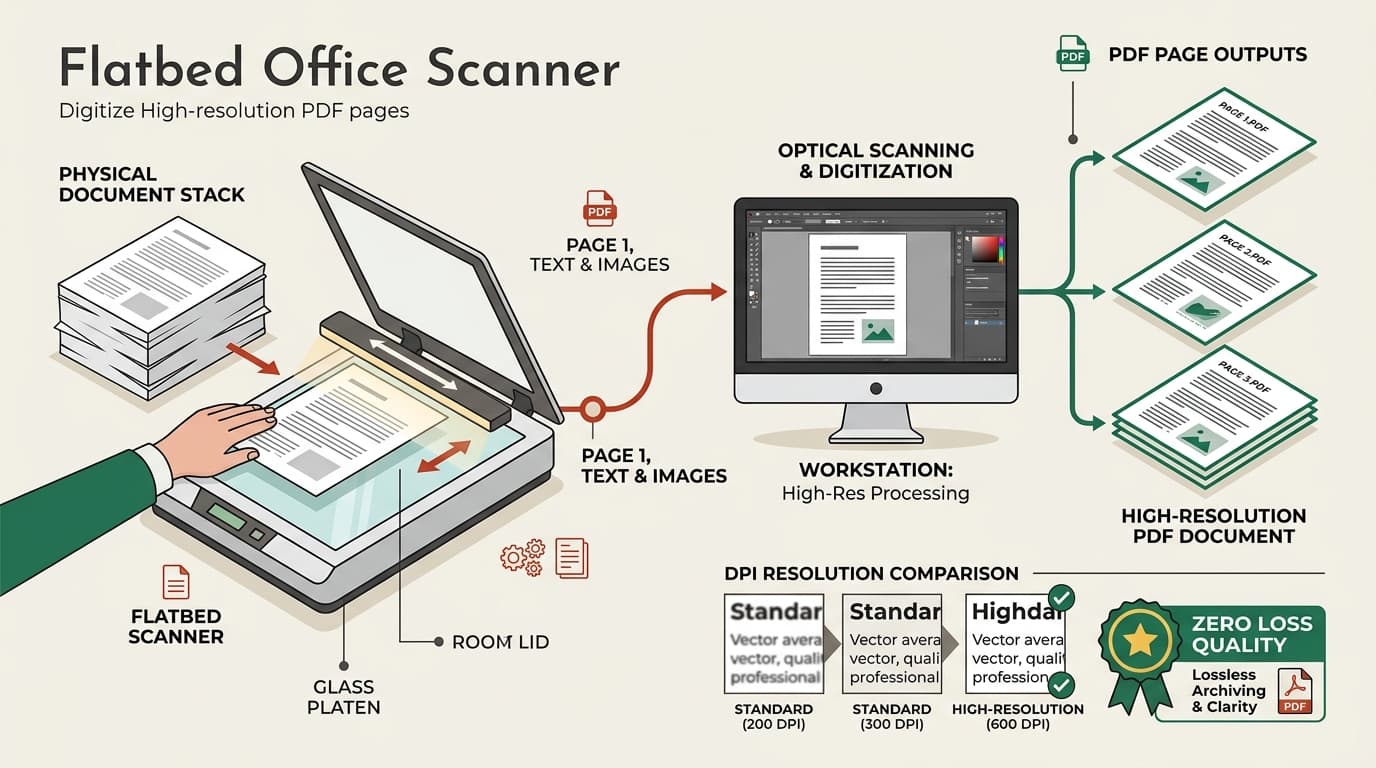
In stark contrast, a scanned PDF contains no native vector text unless an optical character recognition (OCR) engine has post-processed it. Instead, the document is essentially a sequential wrapper container around massive full-page photographic raster bitmaps (usually high-resolution JPEG, TIFF, or JBIG2 image streams).
When traditional online converter websites process scanned PDFs, they routinely upload the entire 100MB+ payload to a remote cloud server, decode the images, apply aggressive downsampling to save bandwidth, and re-encode the output. This results in fuzzy signatures, illegible notary stamps, and compromised privacy for sensitive identity documents.
Scanner DPI resolution vs. file size benchmarks
Understanding your scanner's output parameters helps anticipate memory demands and optimal splitting boundaries:
| Resolution (DPI) | Color Mode | Avg. Size per Page | Recommended Use Case |
|---|---|---|---|
| 150 DPI | Grayscale / B&W | 150 KB – 350 KB | Routine internal office memos & text receipts |
| 300 DPI | 24-bit Full Color | 2.5 MB – 5.0 MB | Government KYC, Passports, Aadhaar, Legal Contracts |
| 600 DPI | 24-bit Full Color | 12.0 MB – 25.0 MB | Forensic court exhibits, high-res architectural blueprints |
If you have scanned a 30-page agreement at 300 DPI, your document will weigh ~100MB. Slicing it by chapters or annexures brings individual file sizes comfortably under the standard 25MB email limit.
Step-by-step: Splitting heavy scans without re-compression
By leveraging client-side WebAssembly, pdfsplitter.in parses the internal cross-reference dictionary and extracts the exact binary image streams byte-for-byte. Here is the exact workflow:
Load the scanned document locally
Drag your scanned PDF into the tool dropzone. The file buffers directly into your computer or smartphone RAM without transmitting over the network.
Define your chapter or range boundaries
Type your page ranges (e.g. 1–4, 5–12, 13–20) or switch to visual range selection to click specific thumbnail pages.
Instant client synthesis and download
Click "Split Document". The engine wraps the untouched raster bitmaps into new standardized PDF headers in milliseconds. Download each segment individually or as a single ZIP package.
Handling duplex scanner inversions and removing blank sheets
Two persistent challenges arise when working with automatic feeder scanners:
Odd / Even Page Inversions
Scanners without simultaneous two-sided imaging require flipping the physical stack. This yields a single file where all front pages come first and back pages come second.
Separate odd and even scan pages →Blank Reverse Sheets
Scanning mixed single- and double-sided contracts injects useless blank pages. Striking them out cleans up client-facing documents.
Cut and strike out blank scan sheets →Preventing browser memory freezes on 100+ page scans
Because client-side processing executes in local browser RAM, massive 600 DPI scans containing 100+ pages may consume over 1GB of temporary memory. Follow these practical recommendations for smooth operation:
- Close unused background tabs: Free up browser heap space before loading 100MB+ PDF documents.
- Split in sequential batches: If handling a 300-page historical book scan, split pages 1–100 first, followed by 101–200, to prevent RAM spikes on older hardware.
- Use Chrome, Firefox, or Safari 64-bit: Modern 64-bit browser engines allocate up to 4GB of WebAssembly heap space per tab.
Written by the pdfsplitter.in Security & Engineering Team
Specialists in client-side WebAssembly cryptography, browser document sandboxing, and zero-trust web architectures.
Frequently asked questions
Related Guides & Tutorials
How to Split a PDF File: The Complete Guide
Every way to split a PDF explained — by page range, into separate single-page files, in half, or by size.
How to Split PDFs Without Adobe Acrobat
Free desktop and in-browser methods to split pages without recurring software subscriptions.
Have a heavy scanned PDF to split right now?
Slice out unwanted scan sheets and chapters losslessly without uploading a single byte.