
How to split PDFs without Adobe Acrobat: free methods on every OS
Adobe Acrobat Pro commands a recurring $239.88 annual subscription. While enterprise publishers may need Acrobat for complex prepress color trapping and certified PKI signatures, extracting a few pages from a contract requires zero software purchases. Here are the best free, private techniques for every major operating system.
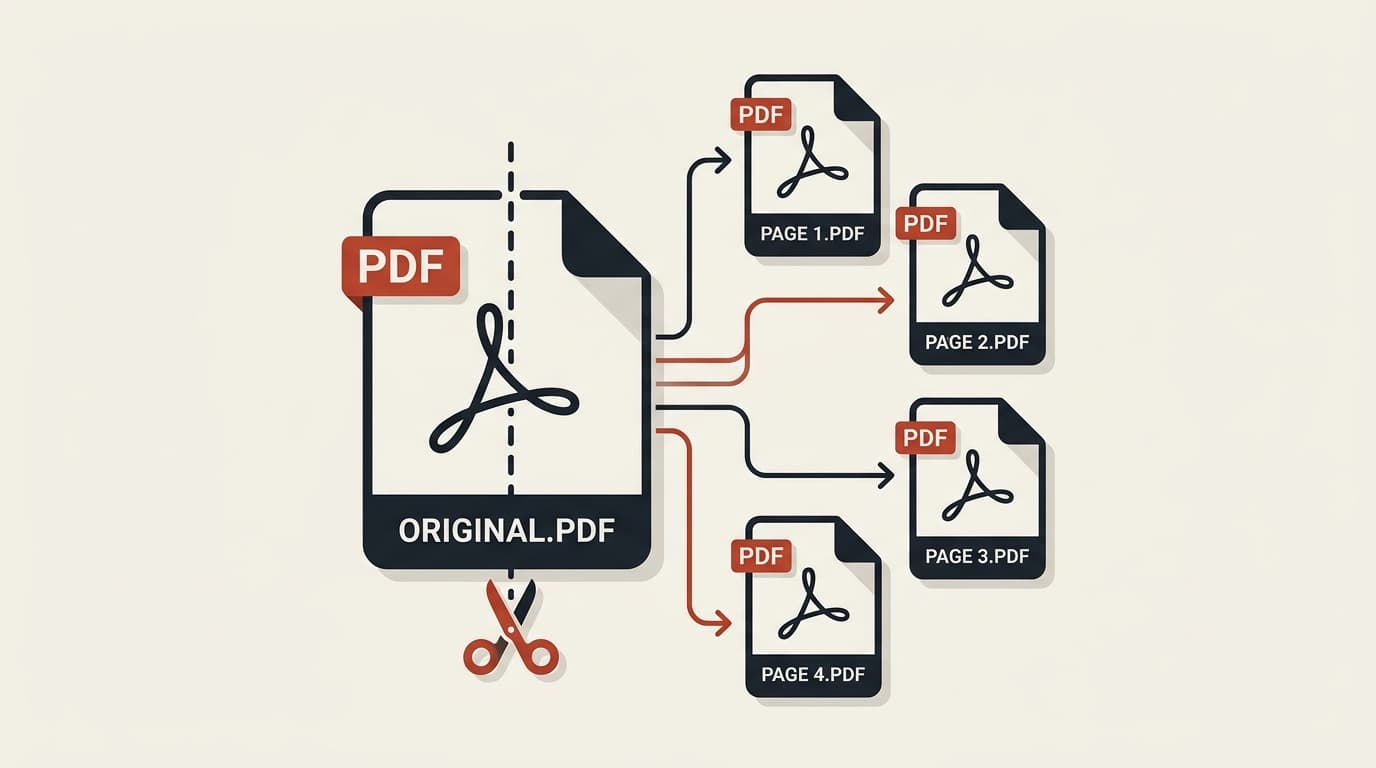
In-Browser WebAssembly (Universal & Lossless)
The modern web platform allows compiled C++ and Rust binaries to execute in your browser via WebAssembly (Wasm). When you use pdfsplitter.in, the application reads the PDF object reference tree locally in RAM and rewrites a clean output file in seconds without network uploads.
Why this is superior to cloud converters:
- Zero file upload latency — works instantly even on 100MB+ documents.
- Inherently compliant with HIPAA, GDPR, and Indian data protection laws because data never leaves your hardware.
- Retains embedded vector typography, bookmarks, internal hyperlinks, and high-DPI raster images without compression loss.
To split right now, head to Split PDF by Page Range and enter your target pages.
Apple Preview on macOS (Native Desktop App)
Every Mac comes pre-installed with Apple Preview, which includes a surprisingly powerful PDF page management engine:
- Open your PDF in Preview.
- Press ⌥ + ⌘ + 2 (or click View > Thumbnails) to show the left thumbnail sidebar.
- Hold ⌘ and click the specific page thumbnails you want to extract.
- Drag and drop the selected thumbnails directly onto your macOS Desktop or a Finder folder. Preview will instantly synthesize a new standalone PDF containing only those sheets.
Limitation: Preview lacks automated batch chunking (e.g. "split every 2 pages") or file-size target dividing.
Windows "Print to PDF" Virtual Printer Trick
Windows 10 and 11 include a built-in virtual printer driver called Microsoft Print to PDF that functions in Microsoft Edge, Google Chrome, and Brave:
- Right-click your PDF and choose Open with > Microsoft Edge or Google Chrome.
- Press Ctrl + P to open the print dialog.
- Set the Destination to Save as PDF or Microsoft Print to PDF.
- Under Pages, select Custom and enter your range (e.g. 1-4, 8, 12-15).
- Click Save and pick a destination folder.
Linux Terminal Command Line (qpdf & pdftk)
For developers, sysadmins, and Linux enthusiasts on Ubuntu, Debian, or Fedora, high-speed CLI tools split thousands of documents headlessly:
qpdf is exceptionally fast and performs true non-destructive lossless byte-slicing.
Feature & fidelity comparison across free methods
| Method | Platform | Preserves Links? | Batch ZIP Split? | Cost |
|---|---|---|---|---|
| pdfsplitter.in | All (Web, Mobile) | Yes (Lossless) | Yes (1-Click ZIP) | Free Forever |
| Apple Preview | macOS only | Yes | No (Manual) | Free (Built-in) |
| Virtual Print to PDF | Windows / Chrome | No (Flattens) | No | Free (Built-in) |
| Adobe Acrobat Pro | Windows / Mac | Yes | Yes | $239.88 / yr |
Written by the pdfsplitter.in Security & Engineering Team
Specialists in client-side WebAssembly cryptography, browser document sandboxing, and zero-trust web architectures.
Frequently asked questions
Related Guides & Tutorials
How to Split a PDF File: The Complete Guide
Every way to split a PDF explained — by page range, into separate single-page files, in half, or by size.
How to Split a Scanned PDF Document
Manage high-resolution scanned paperwork, remove duplex blank sheets, and keep bitmap quality sharp.
Need to split a PDF right now without paying Acrobat fees?
Split your document cleanly in your browser. 100% free forever.